Showcase: Wireless CarPlay on a jailbroken iPad
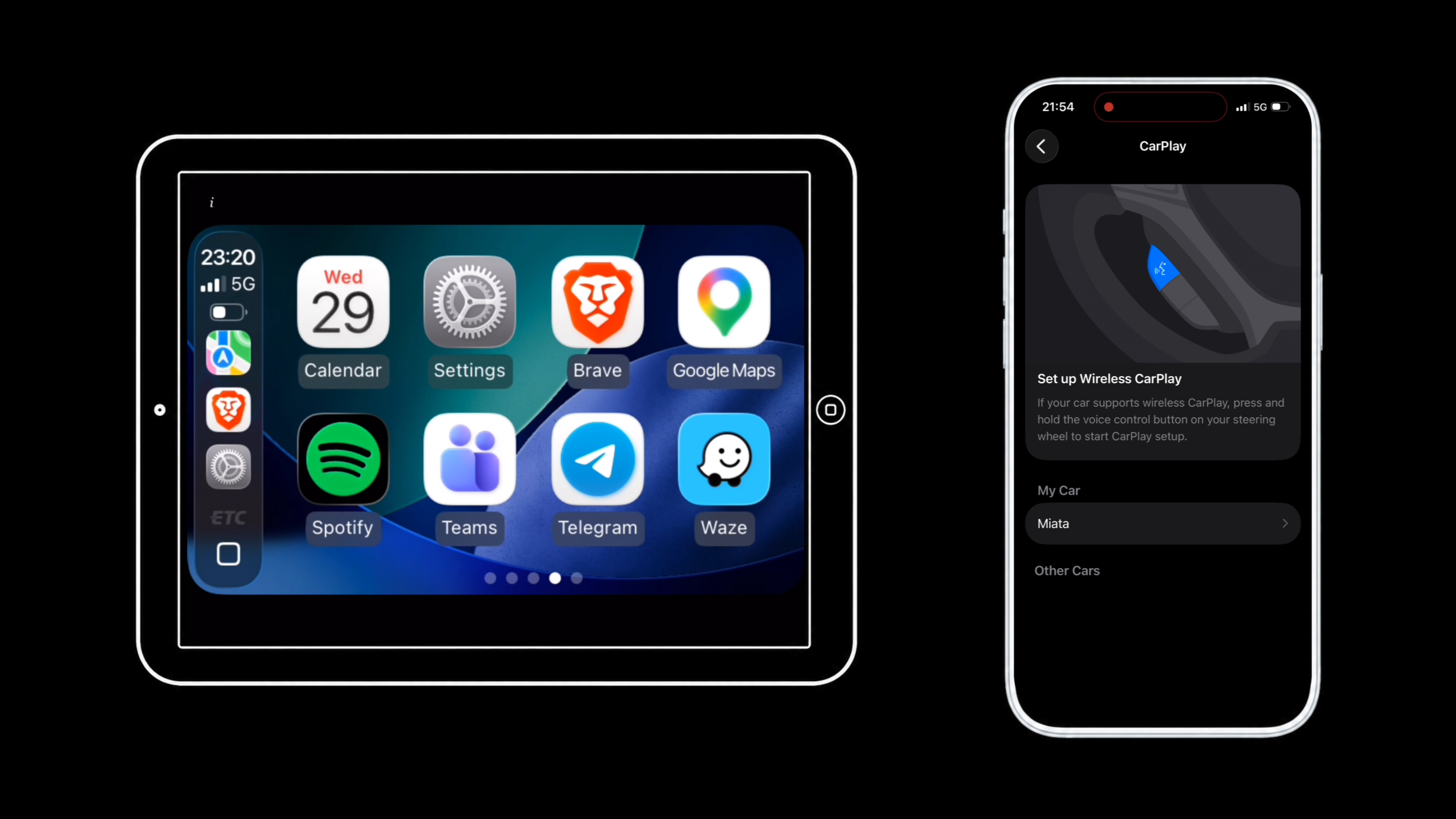
Showcase turns a jailbroken iPad into a fully working wireless CarPlay head unit.
TL;DR
Showcase turns a jailbroken iPad into a fully working wireless CarPlay head unit.
The method came from reverse-engineering Apple's own CarPlay Simulator, a developer tool that lets developers test CarPlay apps on their Macs. The Mac has no Apple Authentication Coprocessor inside it, yet the iPhone accepts it as a real head unit. Pulling that app apart showed how. iOS ships an internal certificate authority called BAA whose proofs the iPhone trusts in place of the licensed coprocessor's signature. A jailbroken device with the right entitlements can issue itself one of those proofs and walk straight through the gate.
The package is published as a Sileo / Cydia source at https://aminerostane.com/repo. The full protocol writeup, with every message and every key, is the report linked above.
How it works
Wireless CarPlay receivers exist on the aftermarket. Cheap ones are around 150 dollars. MFi dongles also exist at around 30 dollars. The harder route is to buy the Apple Authentication Coprocessor as a bare chip (a few dollars) and integrate it into a custom board. All of these routes are either costly (for not much quality) or really technical for the end user.
I had an iPad Air 1 in a drawer. Apple stopped shipping software for it a while ago. The screen is sharp, the chip is fast enough, it has Wi-Fi and Bluetooth, and it had been jailbroken for years (root level access). On paper, that iPad had everything it needed to be a really good CarPlay receiver.
but it was a bit more complicated.
The whole problem comes down to the MFi chip. Wireless CarPlay normally requires the iPhone to see an MFi on the other side, a tiny piece of silicon that signs a challenge with a factory-burned key. No coprocessor, no handshake.
By reverse-engineering Apple's CarPlay Simulator (the tool Apple gives developers to simulate CarPlay on a Mac), I found that the Mac substitutes a certificate from a private internal CA called BAA, which every modern enough Apple device carries on board for its own trust system. With the right entitlements, a jailbroken iPad can ask iOS for a BAA leaf and hand it to the iPhone in place of the chip's signature. The iPhone walks the chain, sees an Apple signature at the root, and accepts the iPad as a real car.
The rest is the standard CarPlay handshake done in software. The iPad pairs over Bluetooth, the iPhone hands it Wi-Fi credentials, the two devices move onto a private network, and a video stream begins. The iPad decodes H.264 on its own GPU. Touches go back the way a real touchscreen would send them.
Then the app. One tap, one wireless connection, no hardware.
What you need
- A jailbroken cellular iPad. Running jailbroken iOS 12+. I tested on an iPad Air 1 (A1475) on iOS 12.5.8 with checkra1n.
- An iPhone running a recent version of iOS. CarPlay support is universal from the iPhone 5 onward, so this is almost certainly not your bottleneck.
- An active SIM in the iPad. CarPlay reuses the iPad's Personal Hotspot to move video, and Personal Hotspot only appears with an active SIM. I used a cheap prepaid SIM for this project.
You do not need a developer account, a paid certificate, an Apple Authentication Coprocessor, or any hardware.
Installing the app
Showcase ships as a Sileo / Cydia package.
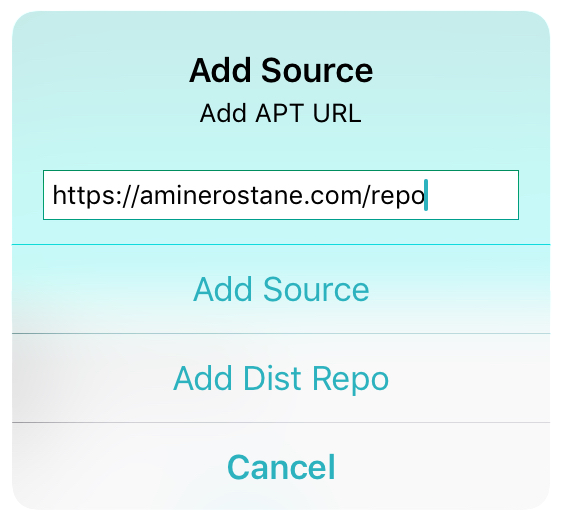
1. Add the source. In Sileo, go to Sources › Edit › + and paste https://aminerostane.com/repo. Tap Add Source.
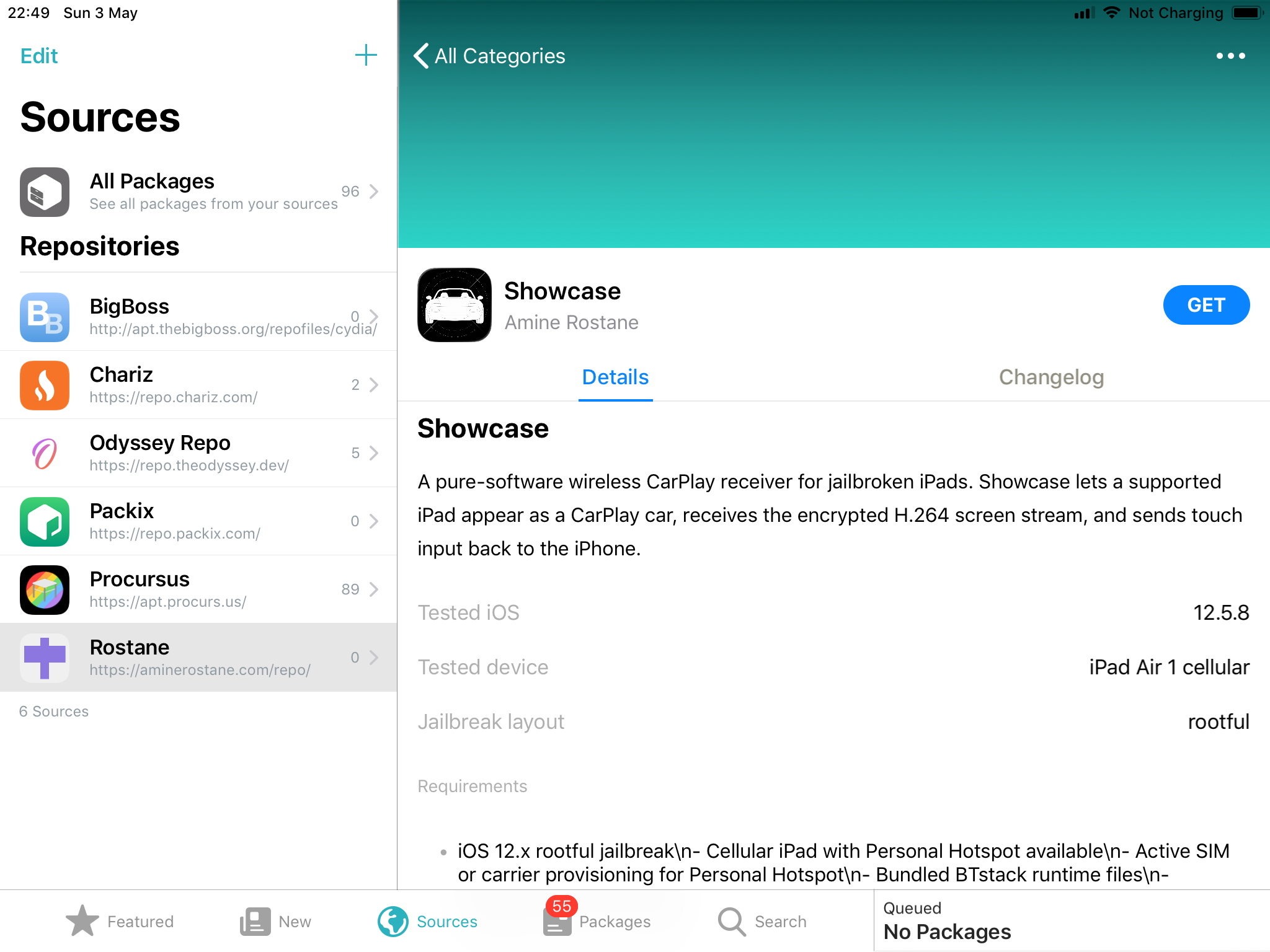
2. Open the package page. Sileo refreshes the source and Showcase appears in the package list. Tap it.
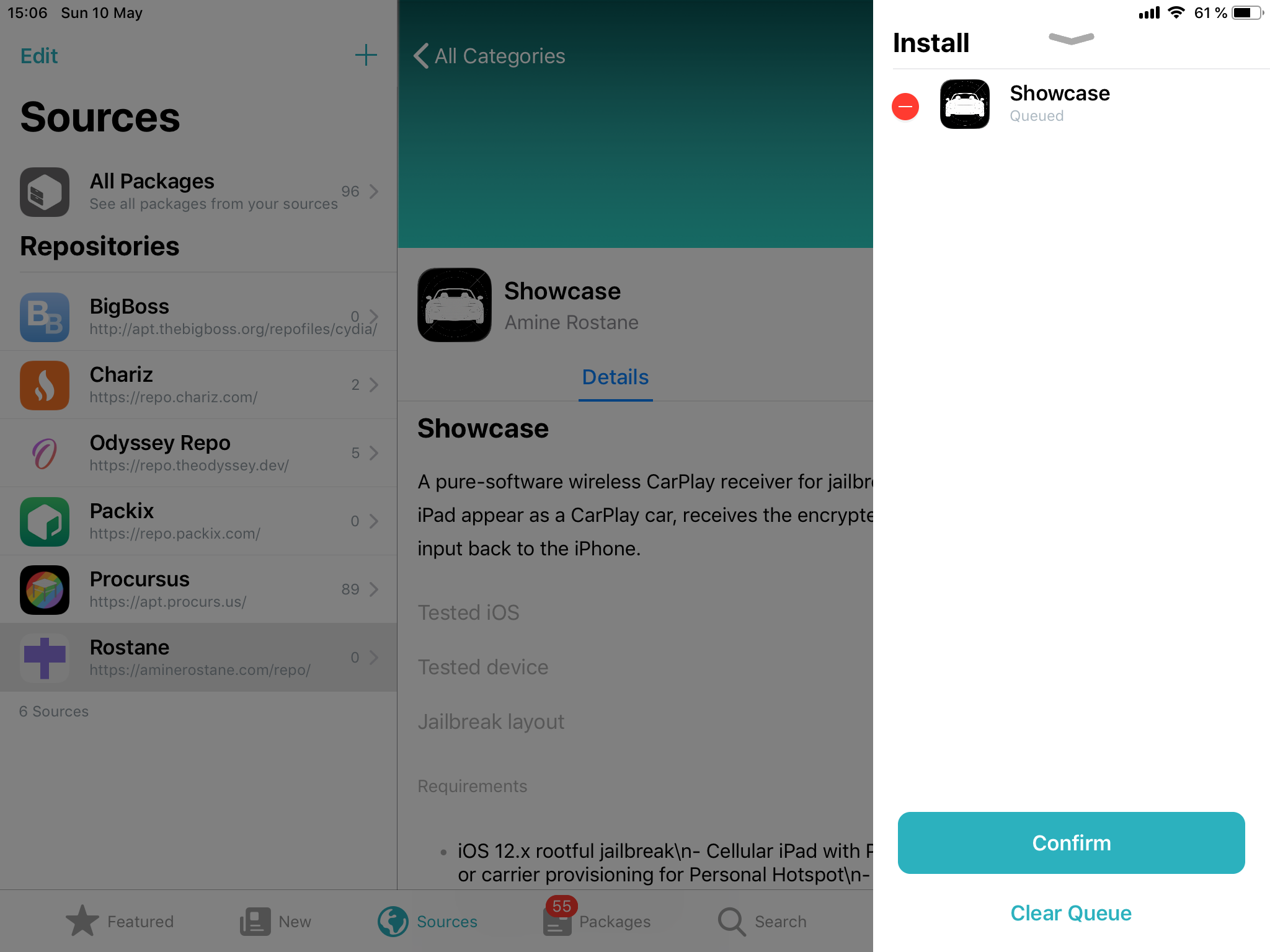
3. Queue and confirm. Tap Get, then Confirm on the queued-actions sheet. Sileo handles the download and install. No respring.
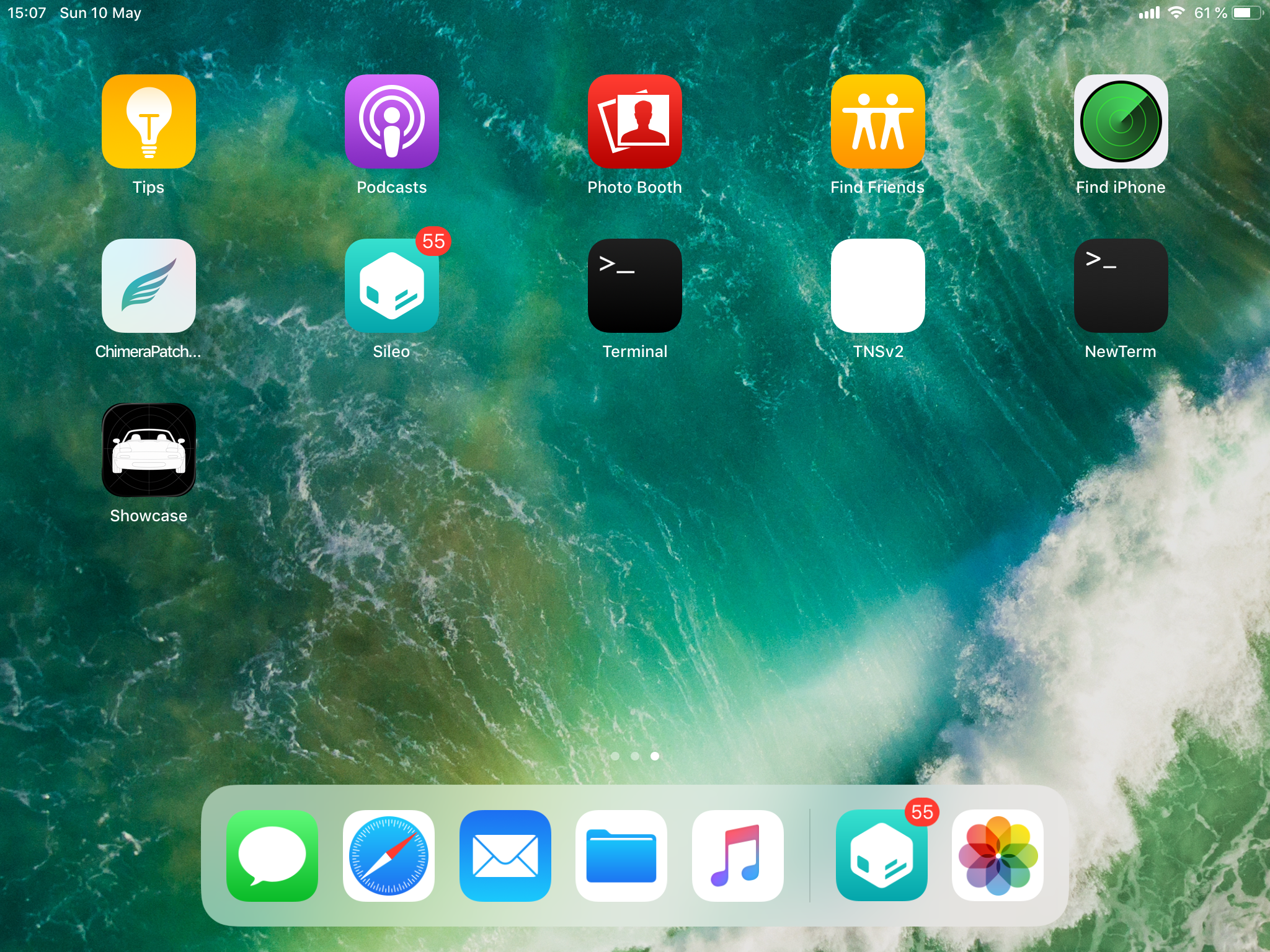
4. Open it. Showcase lands on the home screen with your other apps.
First launch
Tap the Showcase icon. The first time you open it, the app asks you to set the iPad's Personal Hotspot name and password. CarPlay rides on that hotspot, and iOS 26 has two silent rules about what an SSID is allowed to look like. Showcase walks you through both.
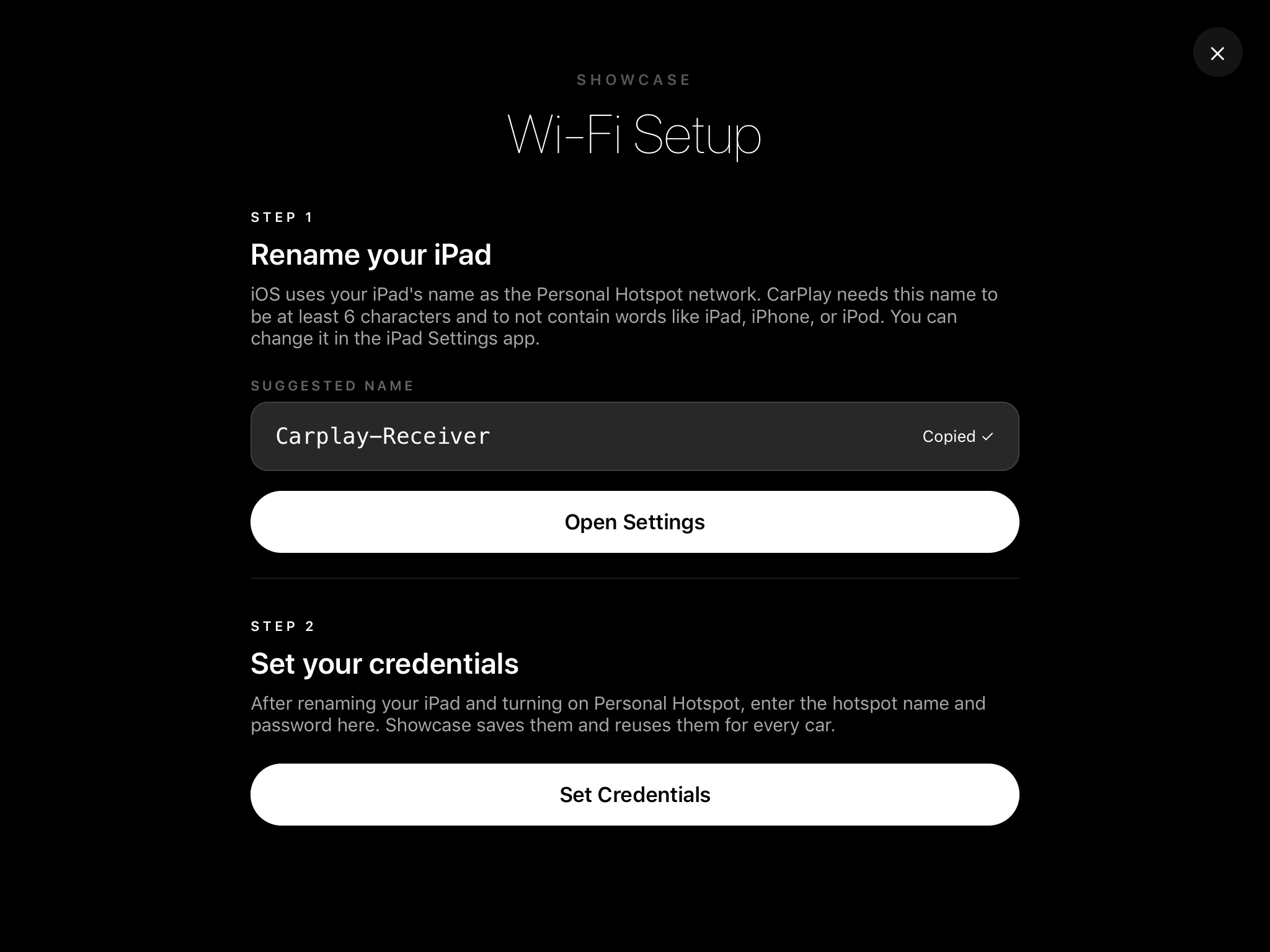
Tap Set Up Wi-Fi. A two-step screen opens.
Step 1: name your iPad
iOS uses the iPad's device name as its Personal Hotspot SSID. Two silent rules apply. iPhones refuse to auto-join an SSID under six characters, and they refuse one containing iPad, iPhone, or iPod. The default name your iPad shipped with fails both.
Showcase suggests Carplay-Receiver. Tap the copy pill. Showcase copies the name to the clipboard.
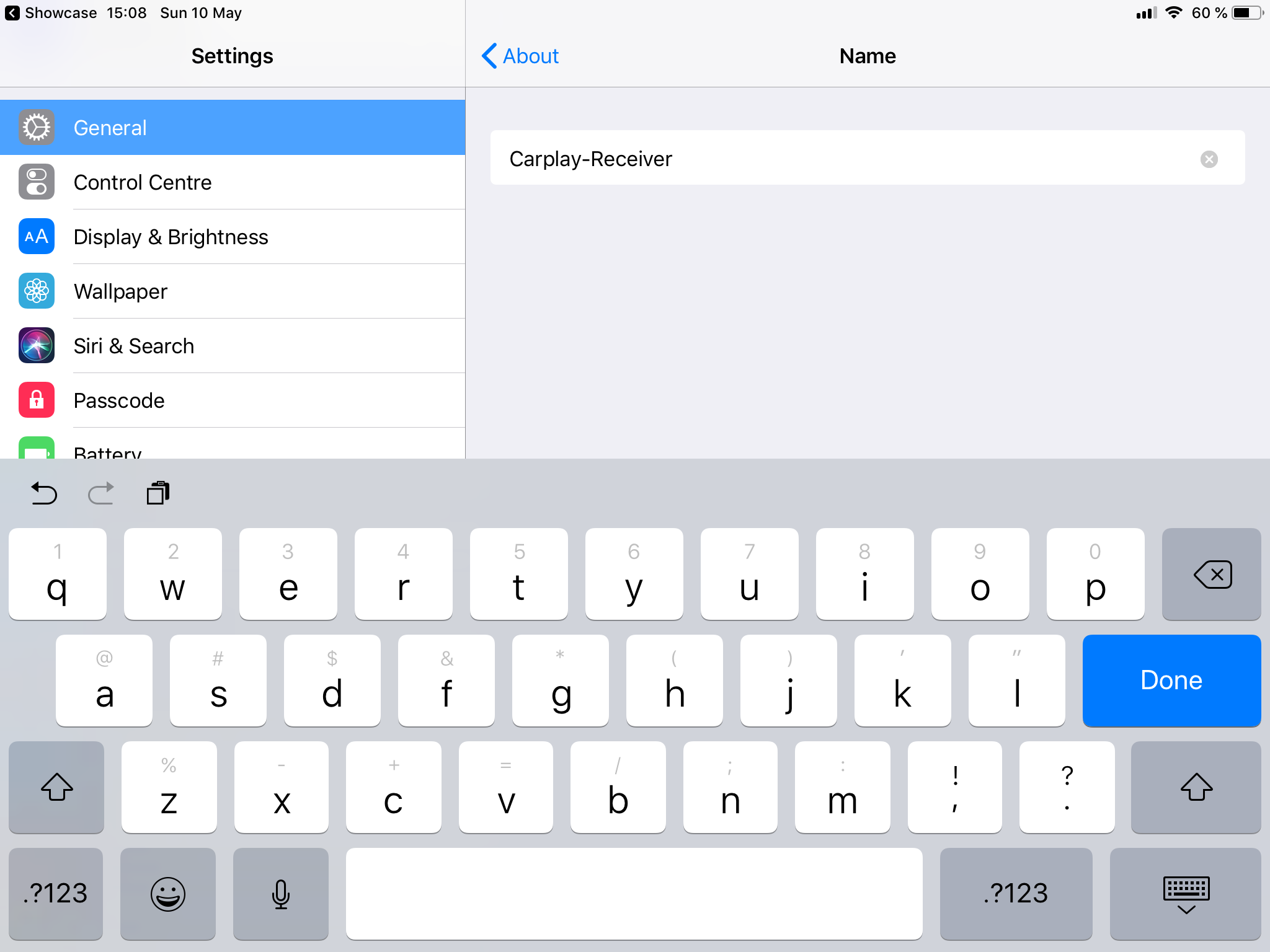
Open Settings › General › About › Name, paste, come back.
Step 2: set your hotspot password and turn it on
Back in Showcase, enter the password your Personal Hotspot uses. You can find or change it under Settings › Personal Hotspot › Wi-Fi Password. Pick something you'll remember. You never type it on the iPhone. Showcase passes it across during the handshake.
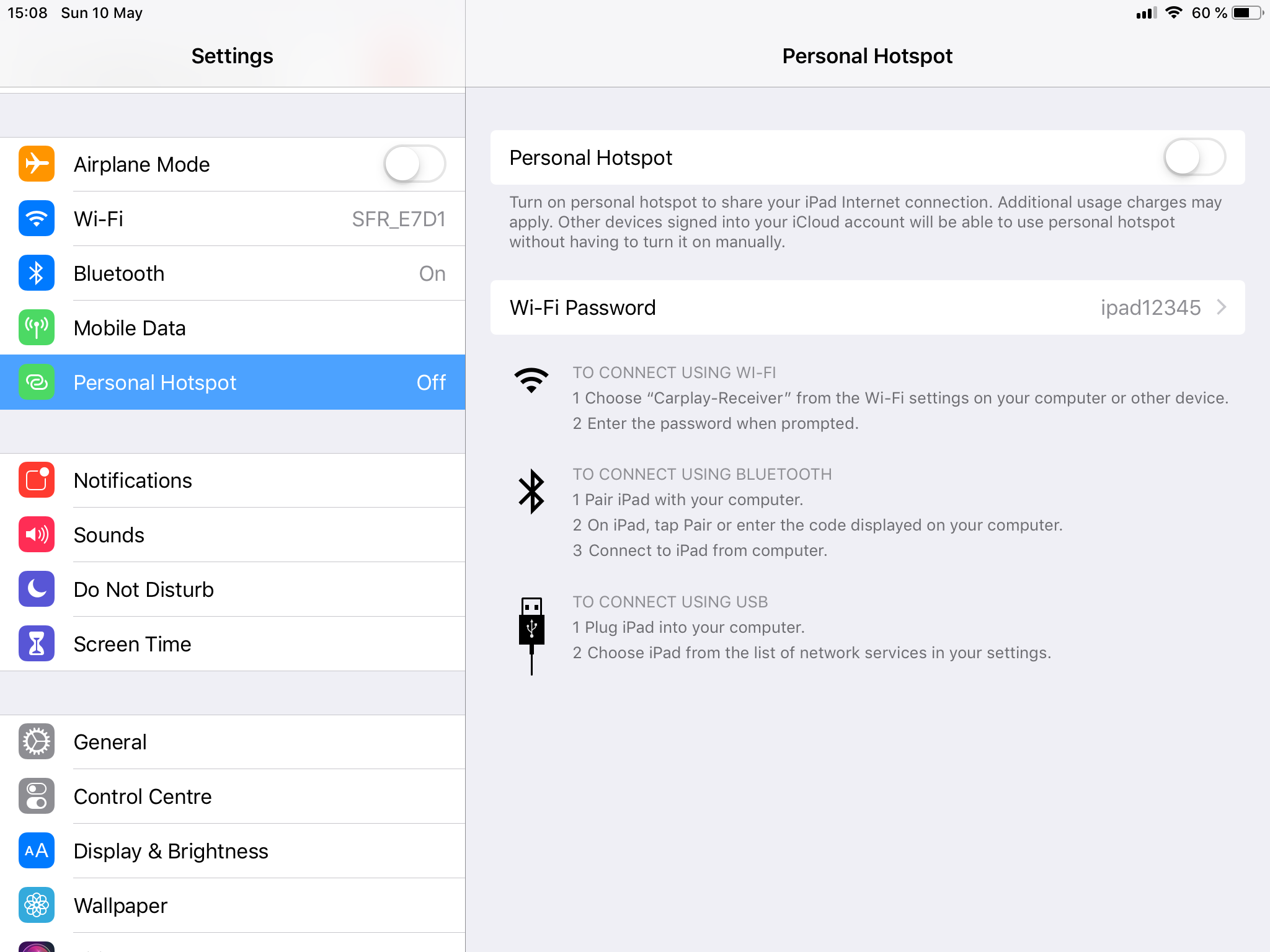
Then turn Personal Hotspot on. Showcase opens that Settings panel for you.
That's the whole one-time setup. From here on the app remembers everything.
Connecting an iPhone
Tap Start CarPlay on the iPad. On the iPhone, open Settings › General › CarPlay and pick Miata (or whatever custom car name you set) under Available Cars. The first connection takes around 30-45 seconds.
To stop, tap the × in the top-right of the iPad. Showcase tears the session down and restores normal Bluetooth.
Multiple cars
Showcase keeps a list of saved configurations under My Cars. Each entry holds its own credentials and becomes active when you tap it.
Open My Cars, tap + to add one, give it a name, save.

The active car appears at the bottom of the main screen in small grey text. Currently using: Miata.
Troubleshooting
- Showcase crashes the moment the iPhone authenticates. Reopen Showcase and tap Start CarPlay again. The iPhone holds the pairing, so the second attempt skips the Bluetooth dance and goes straight to streaming. Leave the car in the iPhone's CarPlay list.
- The iPhone doesn't see Showcase under Available Cars. Wait for the iPad to show Connect from your iPhone before you check the iPhone. The Bluetooth daemon needs a few seconds. If it still doesn't show up, toggle the iPhone's Bluetooth off and on. iOS holds a stale view of nearby devices.
- The iPhone connects but the iPad stays black. The iPhone failed to auto-join the iPad's hotspot. The usual cause is an SSID that breaks one of the iOS 26 rules (under six characters, or containing iPad / iPhone / iPod). Reopen Showcase's Wi-Fi setup and confirm the name.
- The iPad gets warm. H.264 decode runs on the GPU and the load is light, but a Lightning iPad in a sealed mount under direct sun will throttle. A passive cooling pad behind the iPad fixes it.
- Audio plays from the iPhone, not the iPad. I'm still digging into this. For now, anything you do on the iPad that produces sound comes out of the iPhone. No issue if the iPhone is aux-connected to the car. Wireless audio routing to the iPad will land in a later iteration.
Why I built it
My 2015 Peugeot 208 has an onboard system that is absolutely terrible. And i've always loved this iPad and have been looking for ways to revive it for years. Good CarPlay tablets are pretty expensive, and i really couldn't accept that such a capable, gorgeous iPad couldn't handle a wireless handshake and streaming video.
Credits
Matthias Ringwald's BTstack is what made the receiver possible at all. iOS hides its Bluetooth stack behind bluetoothd, with no way for an app to advertise as a CarPlay accessory or to write the iAP2 link layer from scratch. BTstack replaces bluetoothd with a user-space stack that talks raw HCI to the radio. Without that, there would be no project.
Christoph Wille (wiomoc) and Tom Signalius documented the iAP2 link layer and the CarPlay message catalogue. The openairplay team mapped out the AirPlay 2 control channel in airplay2-receiver. electric-monk, rhysmorgan134, and niellun each rebuilt parts of the wireless flow in pycarplay, react-carplay, and FastCarPlay. None of these projects implement a wireless receiver on iOS, but the protocol came back together because each author had written down what they figured out. Thank you.
And thanks to my father, with whom i've been jailbreaking Apple devices since the iPhone 3GS in 2009. This is the first thing I have built that I want to hand back to the community he introduced me to.